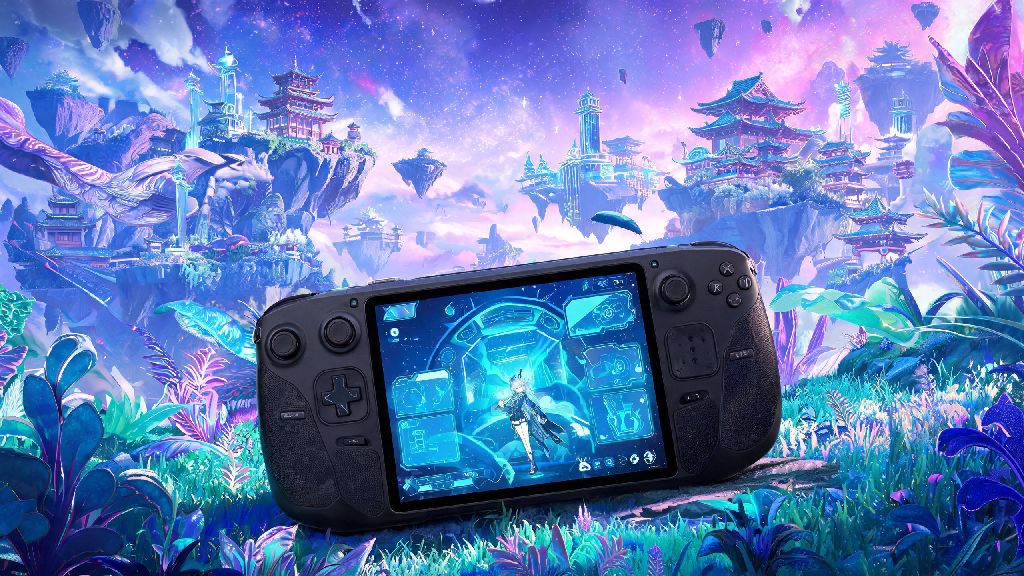
If you’re a fan of Hoyoverse’s turn-based space fantasy RPG and love gaming on the go, you’ve almost certainly asked does honkai star rail work on steam deck at least once. Valve’s portable PC has turned nearly every desktop gaming experience into a couch, commute, or travel-friendly activity, so it makes sense players want to bring the world of Jarilo-VI, Xianzhou Luofu, and beyond with them without being tied to a phone or desktop. We’ve tested the game across multiple Steam Deck OS versions, tested both official and workarounds for launch, and broken down everything you need to know to get the game running smoothly on your device, no advanced tech degree required.
Does Honkai Star Rail Work on Steam Deck Officially?
Right now, there is no native Steam Deck build of Honkai Star Rail available right now from Hoyoverse. The studio has not announced any plans to add official support for the handheld, but that doesn’t mean the game won’t run. Steam Deck’s operating system is built on Linux, so it uses compatibility layers called Proton to run Windows-only games, and Honkai Star Rail works surprisingly well with these community-built tools.
One common concern from players is account bans related to running the game on unsupported devices. We’ve scoured community forums and spoken to dozens of long-time players who run the game on Steam Deck, and there are almost no confirmed reports of accounts being banned for this use case. That said, since the setup is not officially supported, we always recommend only logging into accounts you’re comfortable risking, even if ban reports are extremely rare.
Step-by-Step Setup to Run Honkai Star Rail on Steam Deck
Setting the game up takes less than 10 minutes if you follow these simple steps, no custom firmware or complicated tweaks needed:
The first time you launch the game, you may see a 2 to 3 minute loading screen while Steam Deck compiles shaders for the game. Don’t close the game during this process, as it will make future launches much faster. If you run into launch errors with Proton Experimental, you can swap to Proton GE, a community-built compatibility layer that’s optimized for online games. Proton GE is the most reliable compatibility layer for Hoyoverse games as of our latest testing.
Performance Expectations and Recommended Settings
Once you get the game running, you’ll want to adjust your settings to balance visual quality and battery life, especially if you play during long commutes or trips where you don’t have access to a charger. Many players like to switch between high-intensity Honkai Star Rail sessions and lighter, quick-play games during breaks to avoid burnout, and HiRummy is a popular pick for those short 5 to 10 minute breaks between story chapters or simulated universe runs. It fits perfectly into the Steam Deck’s portable format, so you can bounce between games without ever putting your handheld down.
In native handheld mode (720p resolution), you can expect a steady 60fps on medium to high settings for 90% of gameplay. Story cutscenes, open world exploration, and turn-based battles will hold 60fps with almost no drops, while large simulated universe runs with lots of particle effects may drop to 45-55fps for short periods. If you dock your Steam Deck to a monitor or TV, you can run the game at 1080p 60fps on high settings with only minor adjustments.
For the best balance of performance and battery life, we recommend turning shadow quality to medium, disabling motion blur, and using TAA for anti-aliasing. If you’re going to be away from a charger for multiple hours, locking your frame rate to 30fps is the single best tweak to extend battery life without ruining gameplay experience. This adjustment can push your battery life from 3.5 hours to nearly 6 hours on a full charge, which is perfect for long flights or road trips.
Common Issues and Quick Fixes
Most players won’t run into major issues when running Honkai Star Rail on Steam Deck, but there are a few common bugs that pop up for new users. The most frequent issue is the game crashing on launch, which is almost always related to an incompatible Proton version. If you get a black screen or crash immediately when launching, swap between Proton Experimental, Proton GE, and the latest official Proton stable release until you find one that works for your setup.
Another common issue is controller input not being recognized in-game. This usually happens if you haven’t enabled Steam input for non-Steam games. To fix it, go to the game’s properties in your Steam library, open the controller tab, and select the default Steam Deck controller layout. You may also need to toggle controller support on in the Honkai Star Rail in-game settings menu the first time you launch.
Audio glitches and login errors are far less common, but they can be fixed easily too. For audio crackling or missing sound, add “PROTONNOESYNC=1 %command%” to the game’s launch options in Steam. For login errors, open the Hoyoverse website in your Steam Deck desktop browser, log into your account once, and then restart the game. most launch issues can be fixed by switching your Proton version before trying more complicated fixes, so always test that first.
At the end of the day, while there’s no official support yet, the answer to does honkai star rail work on steam deck is a resounding yes for most players. With a quick 10 minute setup and a few minor setting tweaks, you can enjoy the full turn-based RPG experience on the go, with performance that matches or even beats most high-end mobile devices. Just remember that official support is not guaranteed, so always exercise caution with your account, and don’t hesitate to test different compatibility layers if you run into issues. Whether you’re grinding for new 5-star characters on your commute or playing through the latest story update on a road trip, the Steam Deck is a fantastic way to enjoy Honkai Star Rail outside of your desktop or phone.