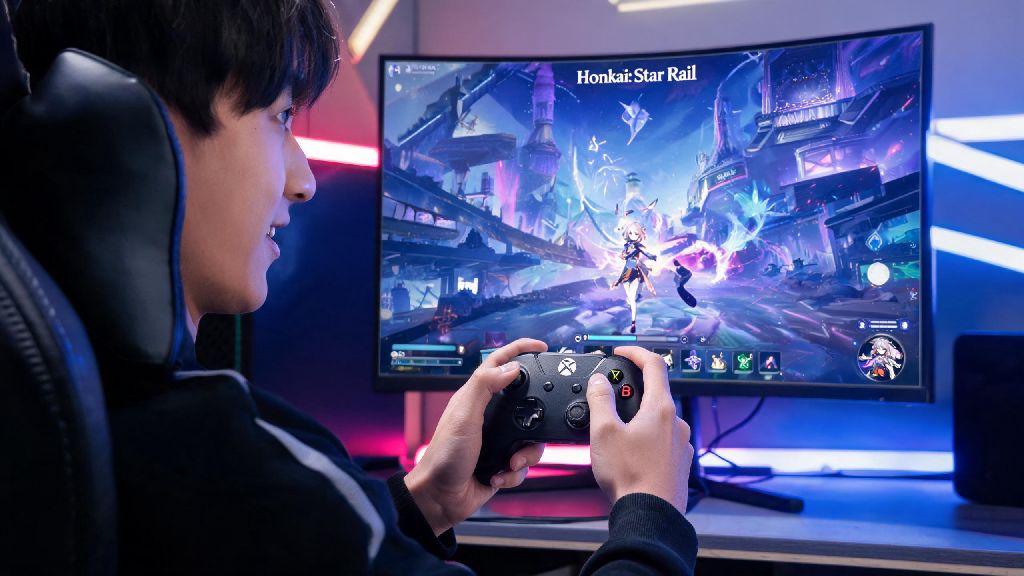
If you’ve ever found your fingers cramping mid-Simulated Universe run or fumbling to tap skill buttons right during a boss fight, you’ve probably wondered does honkai star rail support controller for smoother, more comfortable gameplay. I’ve used an Xbox Series X controller for my daily HSR sessions for the past 6 months, and I’ve found it cuts down on my wrist pain significantly after grinding for relics for 2-3 hours at a time. I’ve tested compatibility across every platform I play HSR on, from my gaming PC to my Android tablet, so I can walk you through exactly what works, what doesn’t, and how to get set up in minutes if you prefer a controller over touch or mouse and keyboard. Controller support can make long grinding sessions way less taxing on your hands, but it’s not always a perfect fit for every part of the game, so we’ll cover the pros and cons too so you can decide if it’s the right call for your playstyle.
Does Honkai: Star Rail Support Controller Across All Platforms?
The short answer is yes, but only for specific platforms, with no native support for mobile versions of the game right now. Native controller support is only available for PC and PlayStation 5 versions of the game as of the latest updates. That means if you play via the official PC launcher, Steam, Epic Games Store, or PS5, you can plug in a compatible controller and start playing almost immediately, no extra work required. For mobile players, you won’t find a controller toggle in the in-game settings for either Android or iOS, even if you connect a controller to your device via Bluetooth. Some players use third-party controller mapping apps to work around this, but I strongly advise against it, as these apps can trigger HSR’s anti-cheat system and lead to temporary or permanent account bans. The only safe way to use a controller for mobile play is to stream the game via a cloud gaming service, since the controller input is sent to the cloud server running the game rather than your local mobile app.
Step-by-Step Controller Setup for Supported Platforms
Setting up a controller for HSR on PC or PS5 is incredibly straightforward, and most players will be able to get it working in under 2 minutes. For PC, start by connecting your controller either via USB cable or Bluetooth, then launch Honkai: Star Rail. Open the settings menu, navigate to the Controller tab, and toggle the “Enable Controller” option on. You can adjust stick dead zones, camera sensitivity, and button mapping right from this menu to match your preferences. For PS5 players, controller support is enabled by default, so you won’t need to adjust any settings at all. The DualSense controller even has limited haptic feedback for certain in-game actions like opening treasure chests or taking heavy damage in combat, which adds a nice extra layer of immersion. You don’t need to download any third-party drivers or software to use supported controllers on PC or PS5, as the game recognizes most popular controller models automatically. Officially supported controllers include:
Common Controller Issues and Quick Fixes
Even though controller setup is usually seamless, you might run into small issues every once in a while, most of which have super simple fixes. The most common problem is the game not recognizing your controller at all, even if it works for other games on your device. First, double check that you have controller support enabled in the HSR settings menu, then restart the game. If that doesn’t work, unplug and replug your controller if you’re using a wired connection, or disconnect and re-pair it via Bluetooth if you’re using wireless. Input lag is another common complaint, especially for players using wireless controllers. To fix this, first turn off VSync in the graphics settings menu, as this can add extra input delay for all control methods. Make sure your controller battery is fully charged, as low battery can cause lag and dropped inputs. If you’re playing high-difficulty content where reaction time matters, switch to a wired connection to eliminate lag entirely. Custom button mapping is available for all supported controllers, so you can set up skill triggers to match your playstyle if you find the default layout awkward. If you’re getting unresponsive buttons or incorrect input recognition, head to the controller settings tab and reset your button mapping to default, then adjust any buttons you want to change manually. Avoid using controller mapping apps for the mobile version of HSR, as these can trigger anti-cheat flags and lead to account penalties, even if you’re only using them for menu navigation or movement.
Pros and Cons of Using a Controller for Honkai: Star Rail
Controllers are a great fit for some playstyles, but they’re not the best option for every type of HSR player, so it’s worth weighing the pros and cons before you switch over. The biggest benefit by far is comfort, especially for long play sessions. I used to get bad wrist cramping after 2 hours of tapping on my phone or using a mouse and keyboard for relic grinding, and switching to a controller eliminated that almost entirely. Controllers also offer much smoother movement for open world exploration, so it’s way easier to navigate around areas like the Xianzhou Luofu or Penacony without running into walls or missing small hidden chests. On the downside, controllers are significantly less precise for fast-paced combat, especially when you need to swap characters and trigger ultimates in quick succession to beat time limits. I still switch to mouse and keyboard when I’m pushing for full stars in Memory of Chaos, because I can swap characters and trigger skills 2-3 seconds faster than I can with a controller, which makes a huge difference in tight fights. Controllers also make menu navigation slower, since scrolling through relic lists or upgrading character traces is much faster with a mouse or touch screen. Controllers are ideal for casual players who prioritize comfort over top-tier combat speed, but mouse and keyboard is still better for high-difficulty content where fast reaction times are required. You don’t have to stick to one input method either; I swap between controller and mouse and keyboard multiple times per play session depending on what I’m doing, and the game switches between control schemes automatically with no extra setup needed.
At the end of the day, the answer to does honkai star rail support controller depends mostly on what platform you play on, but there are safe options for almost every type of player if you prefer using a controller over other input methods. If you only play on PC or PS5, setup is fast and seamless, and you can tweak your controls to work perfectly for everything from open world exploration to casual farming runs. If you play mostly on mobile, you can try cloud gaming services to get controller support without risking your account with unapproved third-party apps. Test both controller and your usual input method for a few days to see which one fits your playstyle best, there’s no wrong choice as long as you’re having fun.