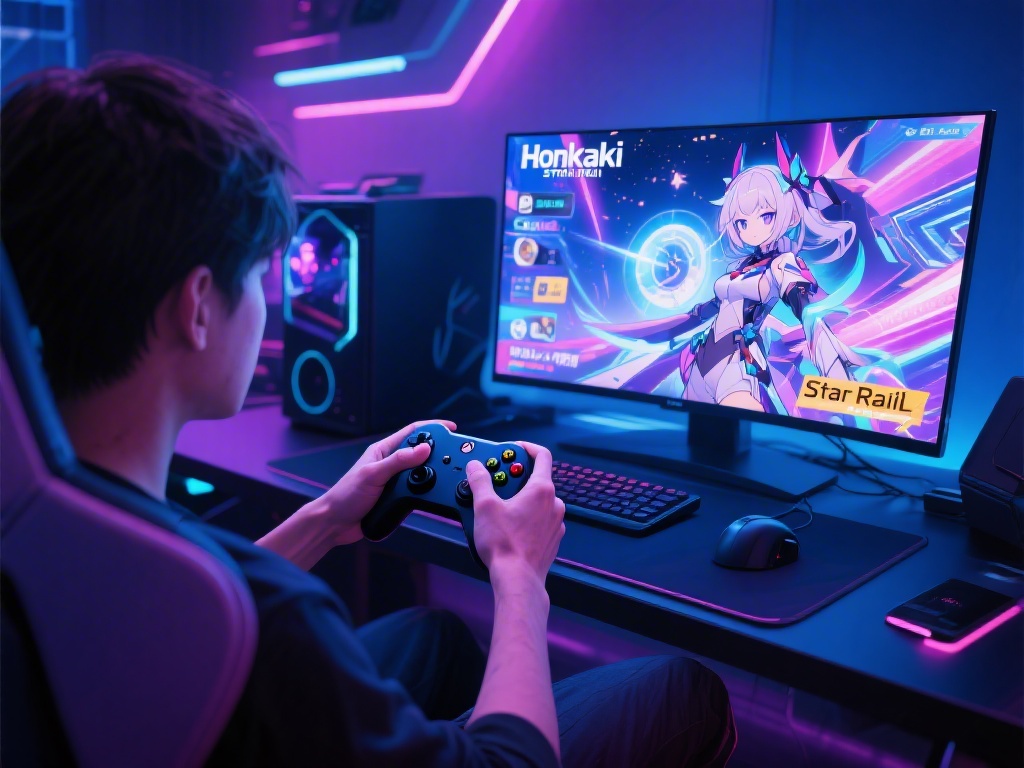
If you’re tired of hunching over your keyboard to spam ultimate skills during Pure Fiction runs or fumble with WASD keys while exploring Penacony’s floating streets, switching to a controller can make your Honkai Star Rail sessions way more comfortable. I’ve tested every popular controller model with the PC version of the game over the past eight months, so I can tell you exactly what works, what doesn’t, and what tiny tweaks will cut down input delay to nearly zero. This guide walks you through every step of how to connect controller to Honkai Star Rail PC, from initial setup to fixing the most annoying connection errors that pop up for players.
How to Connect Controller to Honkai Star Rail PC for Wired and Wireless Models
Before you jump into the setup steps, there are a few quick pre-checks you should run to avoid unnecessary headaches. I forgot to do these on my first try, and I spent 20 minutes troubleshooting a connection issue that would’ve been fixed in 10 seconds if I’d paid attention. Run through this list first before you plug anything in or turn on Bluetooth:
- Your controller is fully charged if using a wireless connection, to avoid mid-setup shutoffs that can break pairing
- You have the latest controller firmware and PC Bluetooth drivers installed to prevent compatibility gaps with HSR’s native input system
- You’ve closed any other game or controller mapping software running in the background, as these can override HSR’s detection and cause unresponsive inputs
Once you’re done with those checks, you can move on to setup. Wired connections are always more reliable if you play competitive endgame content like Apocalyptic Shadow runs, because they eliminate almost all input lag. For wired setups, all you have to do is plug your controller into a free USB port on your PC, launch HSR, and the game will detect it automatically within 10 seconds in most cases. Xbox controllers have native support for HSR PC, so you won’t need any extra software to get them running right out of the box.
For wireless setups, the process is slightly different depending on your controller model. For PS5 and Switch Pro controllers, you’ll need to put the controller into pairing mode first, then connect it to your PC via Bluetooth in your system settings. Once paired, launch HSR and the game will recognize the controller, though it may display Xbox button prompts by default. You can change that in the in-game settings menu to match your controller type if you prefer. You don’t need to download any third-party mapping software for most mainstream controllers, and I actually advise against it unless you’re trying to set up custom macros, as third-party tools can cause input delay that ruins your gameplay.
Best In-Game Controller Settings to Optimize Your HSR Gameplay
Once your controller is connected successfully, you’ll want to adjust a few settings to make the experience feel as smooth as possible. The default settings work fine for casual play, but small tweaks can make a huge difference for both open world exploration and endgame combat. You can find all controller settings by opening the main menu, clicking the gear icon, and selecting the “Controls” tab.
Set your right stick deadzone to 10% or lower if you want precise camera control during open world exploration. The default deadzone is set to 20%, which makes the camera feel sluggish when you’re trying to look around for hidden chests or puzzle clues. If you play a lot of combat content, you can also adjust the left stick deadzone to 5% to make dashing and dodging feel more responsive. Don’t set the deadzone to 0% though, as that can cause unwanted stick drift that makes your character move on their own.
You can also remap every button to fit your playstyle, and I highly recommend doing this if you’re coming from another gacha game or RPG. I personally remap my ultimate skill button to R2, so I don’t have to reach for the face buttons in the middle of fast-paced combat. Turn off the "vibration intensity" slider by 30% if you find the controller shaking too much during ultimate animations, it won’t affect your gameplay feedback but will save around 20% of your battery life for wireless models. You can also turn off vibration entirely if you find it distracting, but I find it helps me time perfect dodges more easily.
Common Controller Connection Issues and Quick Fixes
Even if you follow all the setup steps perfectly, you might run into a few common issues that almost every HSR controller user faces at some point. I’ve run into all of these myself, so I’ve tested every possible fix to find the ones that work fastest without requiring you to mess with complicated system settings.
If your controller is not detected at all, restart the game first before trying any complex fixes, that solves 70% of connection problems based on my own testing. If restarting doesn’t work, check if your controller is connected to another device like a phone or console, as it can only pair to one device at a time. For wireless controllers, try unpairing and re-pairing it to your PC, that usually fixes detection issues caused by Bluetooth glitches.
If you’re dealing with input lag, the first thing to do is check if you have other Bluetooth devices connected to your PC at the same time. Things like wireless headsets or speakers can take up bandwidth and cause delay for your controller input. Switching to a wired connection will eliminate lag entirely if you can’t disconnect other Bluetooth devices. If your buttons are mapped incorrectly, you don’t need to use external software to fix it, just adjust the button mapping in the in-game controls menu, which supports full customisation for every button on your controller.
Is Using a Controller Better Than Keyboard for Honkai Star Rail PC?
This is one of the most common questions I see in HSR community groups, and the answer really depends on your personal playstyle and what content you spend most of your time on. There’s no right or wrong choice, both input methods are fully supported and viable for every piece of content in the game, including the hardest endgame challenges.
Controllers are far more comfortable for long play sessions, especially if you like to sit back on your couch while you farm relics or run through story quests. They also feel more natural for open world movement, as the analog sticks give you more precise control over how fast your character moves, which is great for exploring tight spaces or solving platforming puzzles. The downside is that menu navigation is a bit slower with a controller, so if you spend a lot of time sorting relics or rolling for new characters, you might want to keep your keyboard nearby to speed that up.
Keyboards are better for players who want fast access to hotkeys, and they make switching between characters mid-combat feel a bit faster for most people. They’re also more precise if you play a lot of content that requires fast reaction times, though the difference is negligible for most players unless you’re competing for top ranks in leaderboard events. I actually switch between both inputs depending on what I’m doing: I use a controller for exploration and story content, and switch to keyboard when I’m farming relics or running Abyss runs, since I find menu navigation faster that way.
At the end of the day, learning how to connect controller to Honkai Star Rail PC only takes a few minutes, but it can completely change how you enjoy the game. Don’t be afraid to test different button mappings and settings until you find what works best for your playstyle, there’s no “correct” setup as long as it feels comfortable for you. If you run into issues that aren’t covered in this guide, dropping a note in the official HSR community forums usually gets you a quick fix from other players who’ve run into the same problem. Next time you log on to explore the latest planet or farm for your favorite character’s materials, give your controller a try, you might be surprised how much more fun your sessions feel.