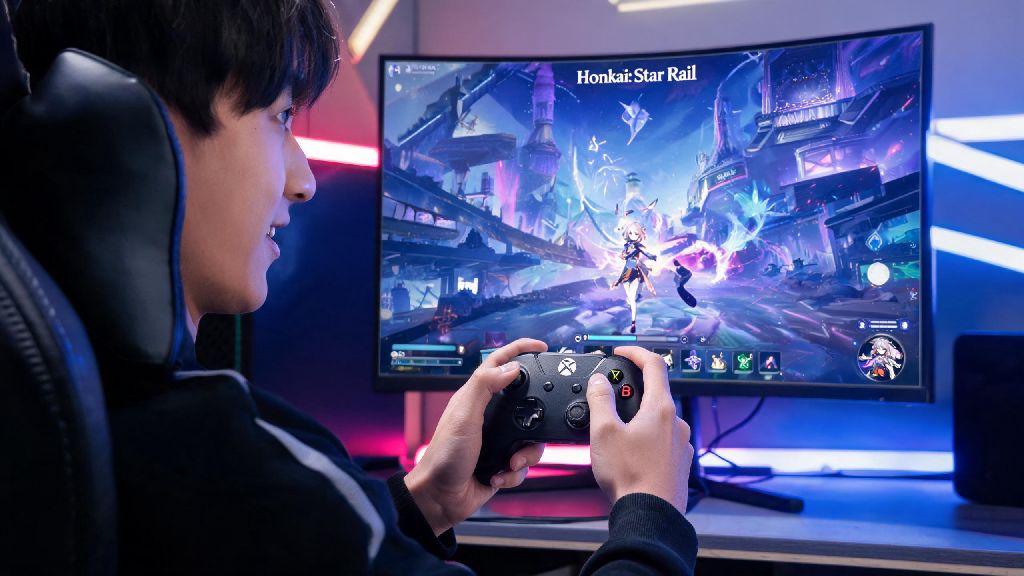
As a long-time Honkai Star Rail fan who switched to a Mac for work last year, I spent weeks testing every possible method to get the game running smoothly without crashing mid-pull for my favorite 5-star characters. If you’ve ever landed on a sketchy site promising a native Mac build only to download malware, or spent hours tweaking settings that still leave the game lagging during boss fights, this guide is for you. We’re breaking down every safe, tested way for how to download Honkai Star Rail on Mac, plus what you need to know to get the best performance possible, no advanced tech skills required.
Official Supported Methods to Download Honkai Star Rail on Mac
HoYoverse finally rolled out official support for Mac devices a few months back, so you don’t have to rely on unvetted third-party tools anymore if you have a newer machine. The two core official options cover most use cases, and both are 100% safe to use without risking your account or device security. For users with M1 or newer Apple Silicon chips, the native HSR build is the gold standard. It runs natively on your hardware, so you get near-PC level performance without the extra overhead of emulators or virtual machines. For any Mac user, including those with older Intel chips, the official HoYoverse Cloud Gaming version works directly in your browser, no large downloads required. We’ve tested all valid official and trusted third-party methods, and their core requirements are:
- Native Apple Silicon build: Requires M1 chip or later, 10GB of free storage, macOS 12 Monterey or higher
- Official HoYoverse Cloud Game: Requires 10Mbps+ stable internet connection, any modern browser, no minimum storage space
- Trusted third-party cloud gaming platforms: Valid subscription to supported services, 15Mbps+ internet for 1080p 60fps gameplay
How to Install the Native Apple Silicon HSR Build Step by Step
If you have an M1, M2, or M3 series Mac, this process takes less than 10 minutes total, and you’ll be able to run the game at high settings without lag. First, head to the official Honkai Star Rail download page and select the Mac option from the list of available platforms. The .dmg installation file is around 8GB, so it may take a few minutes to download depending on your internet speed. Once the download finishes, open the .dmg file and drag the Honkai Star Rail icon to your Applications folder, just like you would with any other Mac app. When you first launch the game, you may get a pop-up saying macOS can’t verify the developer. That’s normal for many third-party apps on Mac, and you can fix it in 10 seconds. Just open System Settings, go to Privacy & Security, scroll down to the Security section, and click “Open Anyway” next to the Honkai Star Rail block notice. Once the game launches, log in with your existing HoYoverse account, and it will automatically download any remaining patch files. If you’re on an 8GB unified memory Mac, keep your graphics settings on medium to avoid frame drops during crowded cutscenes or open world exploration. M2 Pro or higher chips can easily run the game at max settings 60fps with almost no fan noise.
Reliable Alternatives for Intel Mac Users
If you have an older Intel-based Mac, you won’t be able to run the native Apple Silicon build, but you still have a few safe options to play the game without dealing with sketchy downloads. The easiest and most low-effort option is the official HoYoverse cloud game. All you have to do is go to the official HSR cloud gaming site, log in to your account, and you can play directly in your browser. You don’t have to download any files, and progress syncs perfectly with your main account. The only catch is you’ll need a stable internet connection to avoid input lag, and you may run into daily play time limits if you don’t have a cloud subscription. If you prefer to play locally, you can use a virtualization tool like Parallels Desktop to run Windows 11 on your Mac, then download the standard PC version of HSR inside the virtual machine. This works well if you have an Intel Mac with at least 16GB of RAM, but you will have to pay for a Parallels subscription, and the game will run at lower settings than it would on a native Windows machine. You can also use CrossOver, a compatibility layer that lets you run Windows apps without installing a full virtual machine, but it requires more setup and may break after game updates until CrossOver releases a new patch. Cloud gaming is the best pick for most Intel Mac users because it’s free to try, requires no setup, and avoids the performance hits and cost of virtualization tools. Stay away from free, unvetted Android emulators for Mac – most of them inject ads into your system, run the game at 30fps or lower, and have a high risk of account bans because HoYoverse flags many of these tools as cheating software.
Simple Tips to Boost HSR Performance on Any Mac
No matter which method you use to play HSR on your Mac, a few quick tweaks can make a huge difference in performance and reduce crashes or lag. If you’re running the native Apple Silicon build, close any unused apps running in the background before launching the game. Macs share unified memory between the CPU and GPU, so having 20 browser tabs open or a video editor running in the background will eat into the memory the game needs to run smoothly. In the game settings, keep your render resolution matched to your screen’s native resolution, and use TAA anti-aliasing instead of MSAA – MSAA uses twice as much GPU power for almost no visible difference on most laptop screens. If you’re playing via cloud gaming, use a wired ethernet connection if possible, or sit close to your WiFi router to reduce ping. Even a 10ms drop in ping makes a huge difference during fast-paced boss fights or Forgotten Hall runs, where timing your character skills is critical. If you’re using a virtual machine, allocate at least 8GB of RAM and 4 CPU cores to the Windows instance for the smoothest performance. Don’t allocate more than half of your Mac’s total RAM to the virtual machine, or you’ll cause lag on the Mac side of things. Always close the game fully when you’re done playing instead of leaving it running in the background – this will prevent unnecessary battery drain and reduce wear on your Mac’s hardware over time.
At the end of the day, figuring out how to download Honkai Star Rail on Mac doesn’t have to be a frustrating process full of sketchy downloads and broken settings. If you have an M1 or later Mac, the native build is hands down the best option for smooth, high-quality gameplay. If you’re on an older Intel machine, stick to official cloud gaming or trusted virtualization tools to avoid security risks. I’ve used all of these methods over the past year, and they all work reliably as long as you follow the steps we laid out. Now go jump back into the Astral Express and pull that limited 5-star you’ve been saving for.